Blog
How To Connect Your BB Keyboard To An Android Smartphone
Mar
Connecting Yoru BB Keyboard to an Android Smartphone
Step-by-Step Guide to Pairing Your BB Keyboard
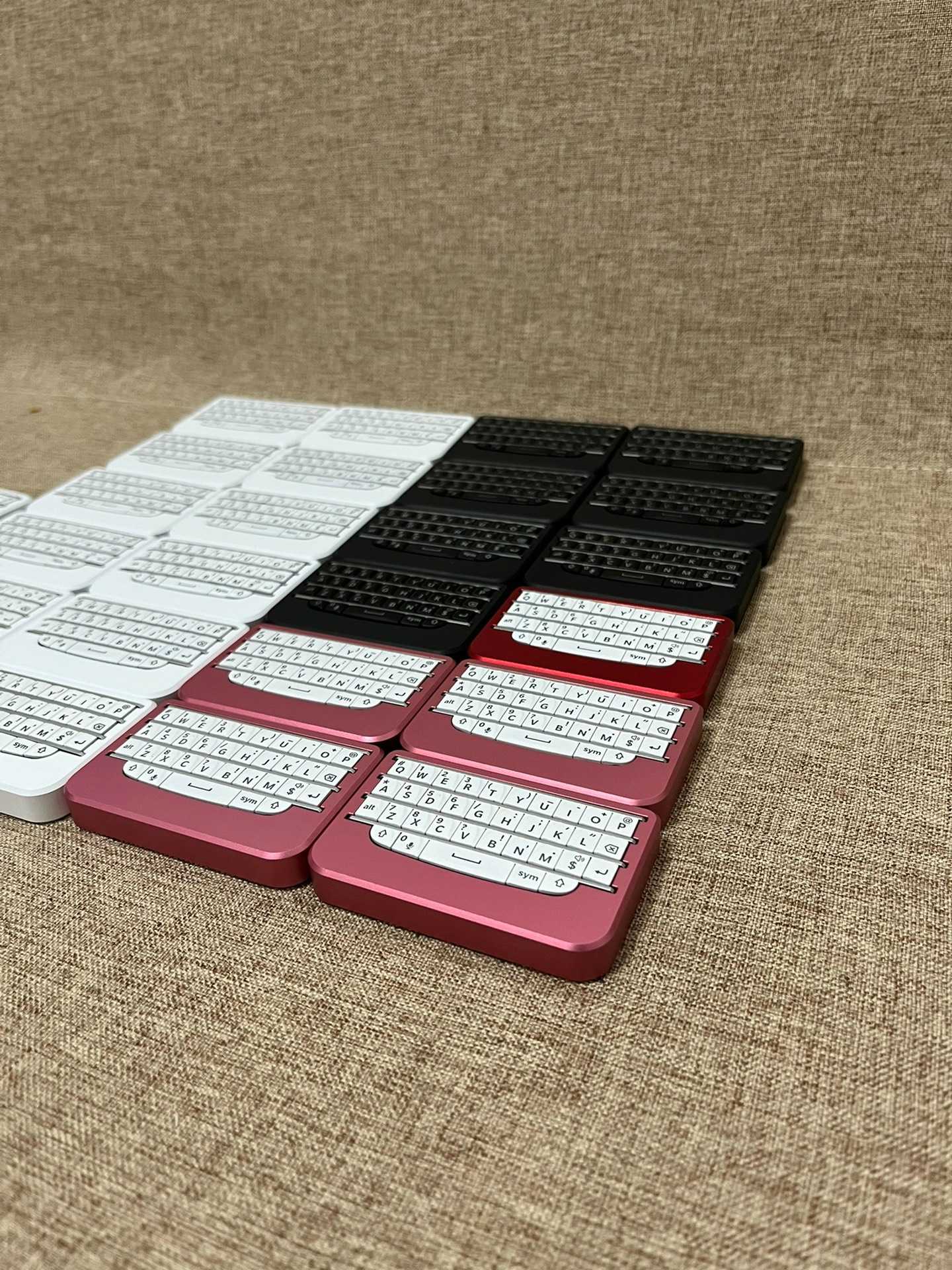
To successfully link your contemporary BlackBerry (BB) keyboard with an Android smartphone, begin by activating the pairing mode on your keyboard. This is typically done by pressing and holding the designated pairing button until you see a notification indicating that it is ready to connect.
Accessing Bluetooth Settings on Your Android Device
Next, navigate to the Bluetooth settings on your Android device. You can find this option in the settings menu, usually under “Connected devices” or “Bluetooth.” Once there, ensure that Bluetooth is enabled and look for your BB keyboard in the list of available devices. Select it to initiate the connection process.
Adjusting physical Layout Settings for Optimal Use
After establishing a connection, it’s crucial to verify that your device’s physical layout settings correspond with the QWERTY configuration of your hardware. This ensures that each keystroke registers accurately as intended. You can adjust these settings within the language and input section of your system preferences.
Ensuring a Seamless Typing Experiance
Establishing a reliable wireless connection between your BB keyboard and smartphone not only enhances convenience but also guarantees minimal input delay when composing messages at high speeds. A stable connection allows for efficient typing without interruptions or lag, making it ideal for fast text exchanges or extensive writing tasks.
By following these steps, you can enjoy a seamless integration of your BlackBerry keyboard with any compatible Android smartphone, enhancing both productivity and user experience.
