BBQ20KBD User Manual: Pairing, USB Mode, Layers, and Troubleshooting

BBQ20KBD Bluetooth pairing guide showing Layer 2 and four device slots

Quick answer: To pair BBQ20KBD with an iPhone, charge and turn on the keyboard, press the bottom-right Up Arrow/Shift key to enter Layer 2, then press one of the four Bluetooth slot buttons across the top row. Open Settings > Bluetooth on the iPhone and select the keyboard when it appears. Press the bottom-right Up Arrow/Shift key again to return to normal typing.

This guide explains the default BBQ20KBD firmware layout, Bluetooth pairing, four-device switching, touch navigation, symbols, backlight controls, wired USB-C mode, and pairing reset steps.

Product page: BBQ20KBD Mini BlackBerry-Style Keyboard

Before you begin

  • Charge the keyboard with a known-good USB-C cable before first use.
  • Turn on the keyboard and keep it close to the phone, tablet, or computer.
  • For the first test, pair only one device and use Bluetooth Slot 1.
  • Test typing in Apple Notes or another simple text field before testing shortcuts in other apps.

Default controls and touch navigation

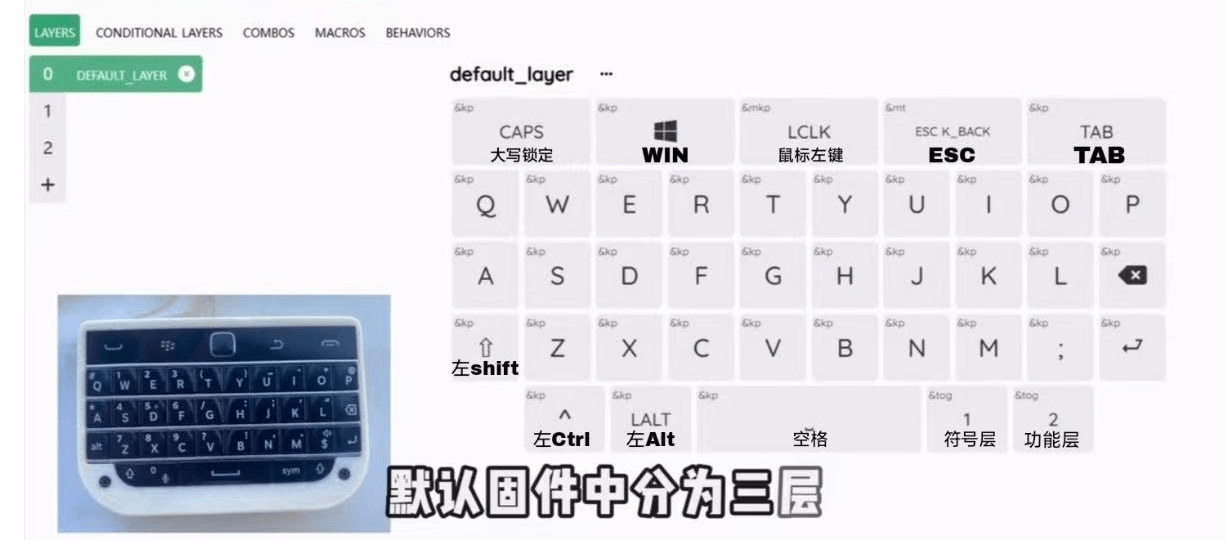
BBQ20KBD starts in Layer 0, the normal QWERTY typing layer. The center touch surface supports pointer control and scrolling:

  • Caps Lock off: move your finger on the touch surface to move the pointer.
  • Caps Lock on: move your finger on the touch surface to scroll.
  • Center press: works as a left mouse click in the default layout.

In the default layer, the upper-left Call button toggles Caps Lock. Use it to switch the touch surface between pointer and scroll behavior.

BBQ20KBD Layer 0 default QWERTY keyboard map with touch controls
Layer 0 is the normal typing layout. Caps Lock switches the center touch surface between pointer movement and scrolling.

The three keyboard layers

Layer 0: Default QWERTY

This is the normal typing layer used after power-on. It contains letters, Space, Enter, Backspace, Shift, Caps Lock, Escape/Back, Tab, and the normal touch controls.

Layer 1: Symbols and numbers

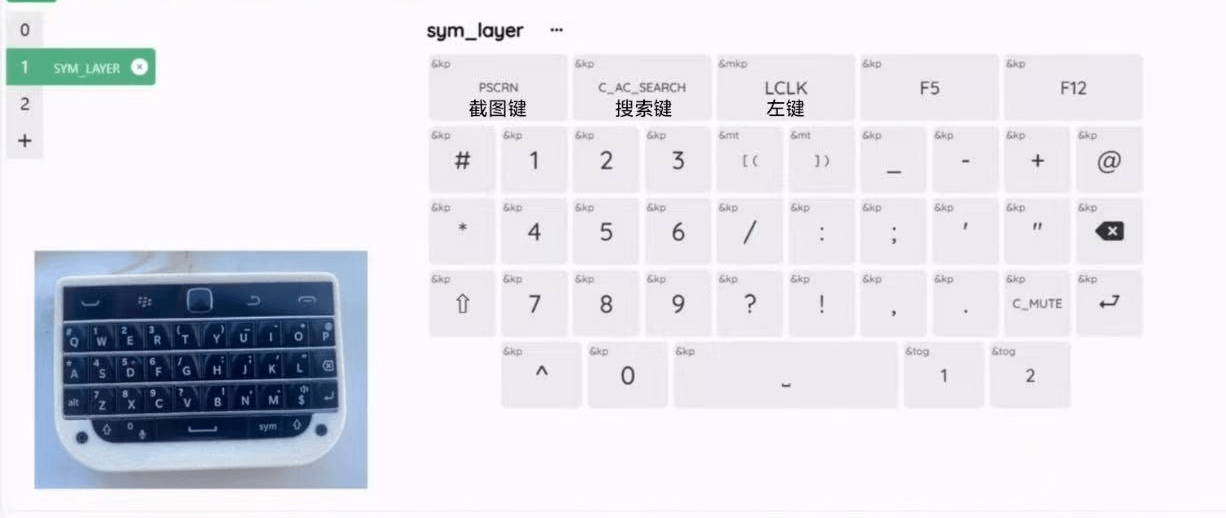
Press the SYM key at the bottom right to enter Layer 1. This layer provides numbers, punctuation, Screenshot, Search, F5, F12, Mute, and other symbol keys. Press SYM again to return to Layer 0.

BBQ20KBD Layer 1 symbols and numbers keyboard map
Press SYM to open Layer 1 for numbers, punctuation, Screenshot, Search, F5, F12, and Mute.

Layer 2: Bluetooth and function controls

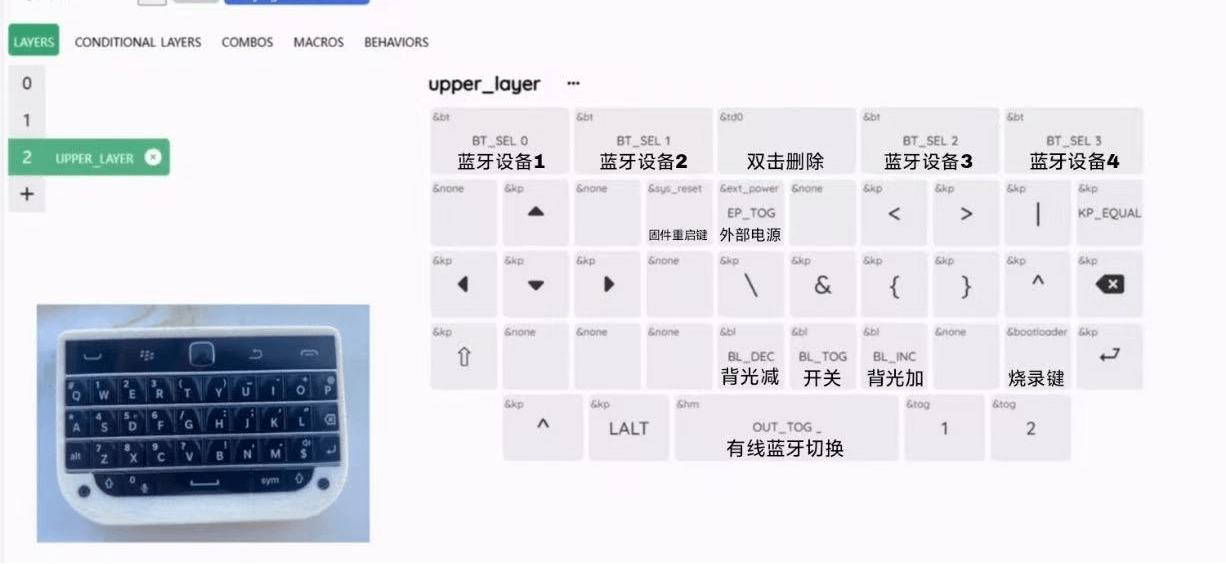
Press the bottom-right Up Arrow/Shift key to enter Layer 2. This layer contains the four Bluetooth profile buttons, pairing reset, arrow keys, backlight controls, output switching, firmware reset, and bootloader access. Press the same bottom-right Up Arrow/Shift key again to return to Layer 0.

BBQ20KBD Layer 2 Bluetooth slots and function controls keyboard map
Press the bottom-right Up Arrow/Shift key to open Layer 2. The four large top buttons select Bluetooth Slots 1 through 4.

Bluetooth slot button map

In Layer 2, the four large buttons across the top select the four Bluetooth profiles. The center touch surface is not a profile button.

Bluetooth profile Physical button in Layer 2 Suggested device
Slot 1 Call button, upper left Main phone
Slot 2 BlackBerry logo button Tablet
Slot 3 Back button Laptop
Slot 4 End Call button, upper right Desktop or spare device

How to pair BBQ20KBD with an iPhone or iPad

  1. Charge the keyboard and turn it on.
  2. On the keyboard, press the bottom-right Up Arrow/Shift key to enter Layer 2.
  3. Press the upper-left Call button to select Bluetooth Slot 1.
  4. On the iPhone or iPad, open Settings > Bluetooth.
  5. Under Other Devices, select the keyboard when it appears. Depending on the firmware version, the name may appear as bbq20 or a similar BBQ20KBD name.
  6. Press the bottom-right Up Arrow/Shift key again to return to Layer 0.
  7. Open Apple Notes and test letters, Space, Backspace, Enter, Shift, and SYM.

If the keyboard does not appear, the selected slot may contain an old pairing. Follow the clearing steps below, remove any old keyboard entry from the iPhone, and try again.

Pair additional devices

Repeat the pairing workflow with a different slot for each device:

  1. Enter Layer 2 with the bottom-right Up Arrow/Shift key.
  2. Select Slot 2, 3, or 4 using the matching top-row button.
  3. Open Bluetooth settings on the new device and select the keyboard.
  4. Return to Layer 0 after pairing.

Avoid pairing the same phone or computer to several BBQ20KBD slots. Duplicate pairings can make reconnection and switching confusing.

Switch between paired devices

  1. Press the bottom-right Up Arrow/Shift key to enter Layer 2.
  2. Press the top-row button assigned to the device you want to use.
  3. Wait briefly for Bluetooth to reconnect.
  4. Press the bottom-right Up Arrow/Shift key again to return to Layer 0 and type normally.

Clear an old Bluetooth pairing

  1. Enter Layer 2.
  2. Press the top-row button for the Bluetooth slot you want to clear.
  3. Double-tap the center touch surface to clear that slot on the keyboard.
  4. On the phone or computer, open Bluetooth settings and remove or forget the old keyboard entry.
  5. Select the same slot again and repeat the normal pairing process.

Important: Clear the pairing on both the keyboard and the host device. If only one side is cleared, the old pairing record can prevent the next connection.

USB-C and Bluetooth output switching

BBQ20KBD supports Bluetooth wireless input and USB-C wired keyboard input. USB-C is also the quickest troubleshooting path: if the keyboard works over USB-C but not Bluetooth, focus on the selected Bluetooth slot and the host device’s saved pairing.

In Layer 2, hold the wide Space key to toggle between wired USB-C and Bluetooth output in the default firmware. Use it only when you intentionally want to change the active connection path.

Backlight and advanced function keys

Layer 2 includes Backlight Down, Backlight Toggle, and Backlight Up controls. It also includes Firmware Reset, External Power, and Bootloader functions.

Do not use Firmware Reset or Bootloader during normal pairing. Those controls are intended for recovery or firmware work. Accidental use can interrupt setup and may require reconnecting or reflashing the keyboard.

Troubleshooting

The keyboard does not appear in Bluetooth settings

  • Charge the keyboard and keep it close to the host device.
  • Confirm that you entered Layer 2 and selected a Bluetooth slot.
  • Clear the selected slot, remove the old host pairing, and try again.
  • Toggle Bluetooth off and on on the phone or computer.

The keyboard pairs but does not type

  • Return from Layer 2 to Layer 0 before typing.
  • Test in a plain Notes field.
  • If USB-C works, the keyboard hardware is probably functioning and the issue is likely Bluetooth history, the selected slot, or app-specific behavior.

The keyboard reconnects to the wrong device

  • Use only one slot per device.
  • Remove duplicate BBQ20KBD entries from the host device.
  • Record which top-row button is assigned to each device.

The touch surface scrolls instead of moving the pointer

Turn Caps Lock off. The touch surface scrolls while Caps Lock is enabled and moves the pointer while Caps Lock is disabled.

Firmware and enclosure files

The BBQ20KBD project repository contains the current downloadable enclosure STEP files and the BBQ20KBD ZMK firmware file:

BBKeyboard BBQ20KBD files on GitHub

Only flash firmware when you have a specific recovery or customization reason. Normal Bluetooth pairing does not require a firmware update.

Quick verification checklist

  • The keyboard is charged and powered on.
  • Layer 0 types normal letters in Notes.
  • SYM opens and closes the symbols layer.
  • The bottom-right Up Arrow/Shift key opens and closes Layer 2.
  • Each host device uses one Bluetooth slot.
  • The center touch surface moves the pointer with Caps Lock off and scrolls with Caps Lock on.
  • Old pairings are removed from both the keyboard and host before re-pairing.

Related BBKeyboard guides

Leave a Reply