Blog
BBQ20KBD – User Manual
Download links for STEP and ZMK files for 3D printing the outer shell:
https://github.com/zrq13/BBKeyboard-BBQ20KBD
Keyboard Layers & 4-Device Bluetooth Switching Guide
This keyboard is built for compact productivity: it combines a dual-purpose touch surface (mouse + scroll) with layered key output (so a small keypad can still produce many functions), and it supports pairing with up to four Bluetooth devices for quick switching.
2-in-1 Mouse and Scroll Wheel (Caps Lock Toggle)
The touch surface behaves differently based on Caps Lock:
-
Caps Lock ON: the touchpad works like a scroll wheel (scroll pages/content).
-
Caps Lock OFF: the touchpad controls the mouse cursor (pointer movement).
In addition, the keyboard can pair with up to 4 devices and lets you switch between them quickly.
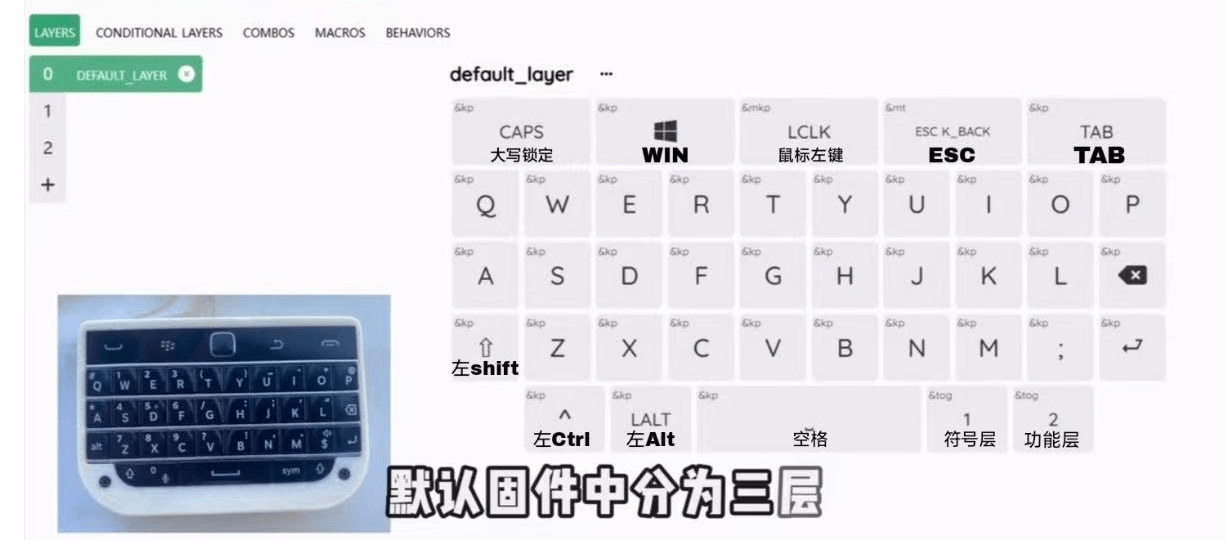
Key Layer Introduction (Why Layers Exist)
Because the numeric keypad area has limited physical keys, the keyboard uses layers so one key can output different characters/functions depending on the active layer.
When you power on the keyboard, it starts in Layer 0, the standard QWERTY layer.
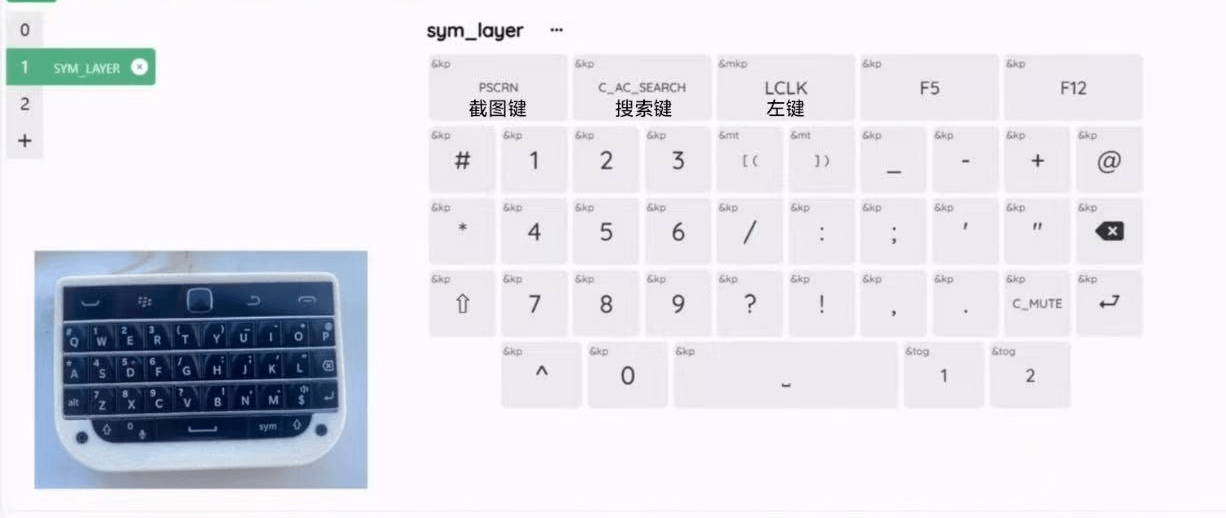
Layer Switching Basics (Layer 0 → Layer 1 → Layer 2)
-
Layer 0 (Default): QWERTY typing layer (active after powering on).
-
Layer 1 (Symbols + Numbers): press the SYM key (bottom-right) to enter; you can output symbols and numbers.
-
Layer 2 (Bluetooth + Function Keys): use the right-side arrow keys to enter; it contains Bluetooth operation keys and additional function keys.
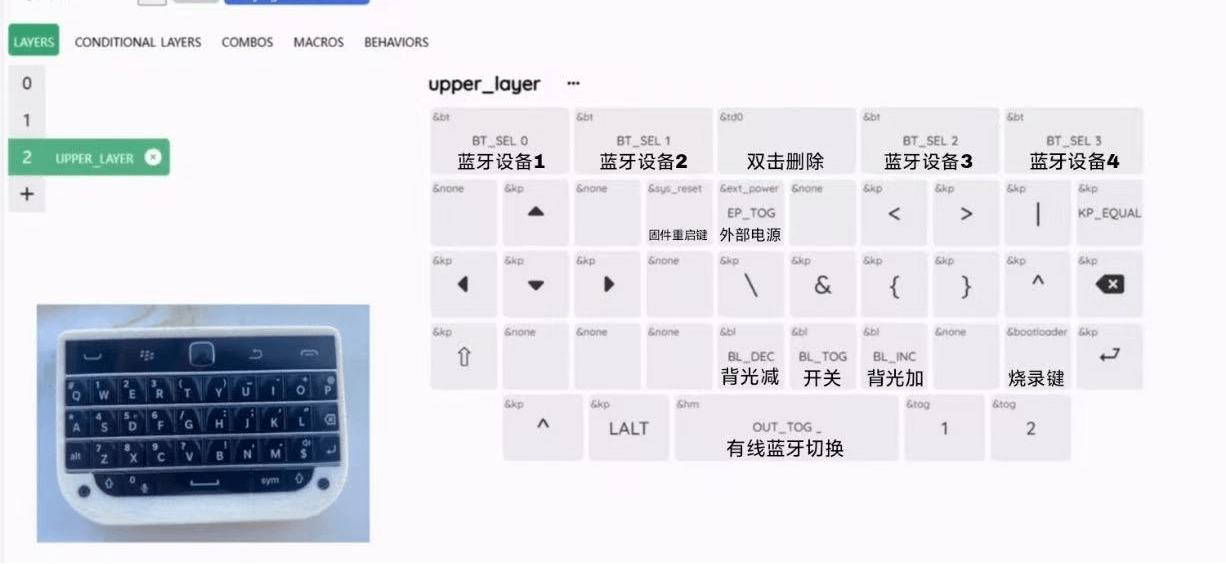
Connecting Bluetooth Devices (Bind Up to 4 Devices)
-
Enter Layer 2.
-
Press the 1st / 2nd / 3rd / 4th large button depending on which device slot you want to bind.
-
On your phone or computer, search for the keyboard in Bluetooth and connect.
-
Repeat for the other buttons to bind additional devices.
Switching to Another Device While Using the Keyboard
-
Enter Layer 2
-
Press the large button for your target device slot
-
Press the right arrow key to return to Layer 0 for normal typing output
Removing Bluetooth Devices (Clear a Slot)
-
Enter Layer 2
-
Press the large button for the device slot you want to clear
-
Double-click the touch surface to clear pairing for that slot
Important: also unpair/remove the keyboard on your phone or computer Bluetooth settings. If you don’t, the device may keep old pairing data and you may not be able to connect next time.
